Appearance
Get started with Scribe
Turn project conversations into organized tasks, decisions, issues, and follow-ups. Scribe works quietly by default; you review its work in Crumbs.
1. Create Scribe
- Create a workspace and choose Scribe.
- Leave its reply setting at Never reply. You can inspect this under Optional settings.
- Select Create Scribe and continue.
New workspaces start at Medium automation: tasks, decisions, and follow-ups are saved and updated automatically. Messages and reminders still require approval. In Settings → Automation, choose Low to review project changes first, or Custom to choose which actions need approval. These settings apply to the whole workspace. Creating Scribe does not change existing settings. Automation does not change reply behavior: Scribe set to Never reply stays silent even at Max.
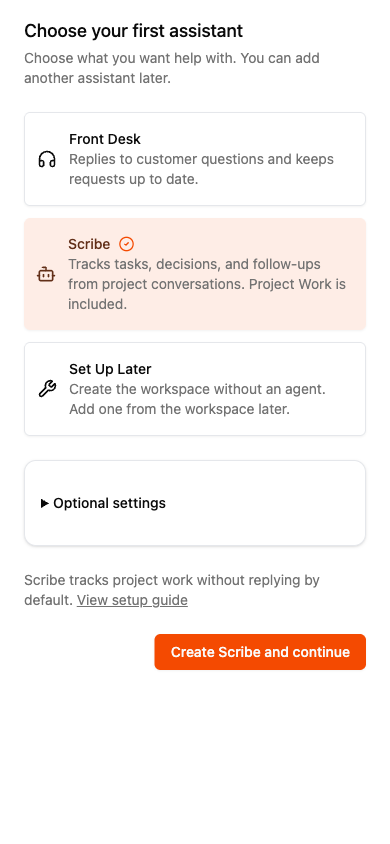
Project tracking and Project Work are included. You do not need to install a Group Project Management extension.
In an existing workspace, open Agents and create an agent using the Scribe starting point. Additional Scribes share the workspace's tracking features. Creating one does not replace your existing default assistant, project assignments, or automation settings.
2. Connect a project group
Choose a WhatsApp account or Telegram bot.
- WhatsApp: the connected account needs access to the project group.
- Telegram bot: choose Scribe for the bot, then allow it to read ordinary group messages.
In Crumbs, check that the project uses the intended message agent. If you already use Front Desk, select Scribe for the project conversations you want it to track.
3. Verify receipt
Send a new ordinary message from another group member, then open the conversation in Crumbs. For Telegram, do not tag the bot or reply to it for this test.
If the conversation is missing, check Conversation review in Messaging Channels. A connected account alone does not prove that group messages are arriving.
4. Inspect a piece of work
Use Try a project conversation during setup, or send a clear project update in your test group. For example: “Please create a task to review the project drawings tomorrow. The review is not started yet.”
- Open the project and Project Work.
- Check Work for captured records and Review for pending actions and proposed record changes.
- Open the record and check its source messages.
- If nothing has appeared, inspect AI activity for pending approval or a failure.
Scribe may leave conversational chatter alone. Silence in the group is expected with Never reply selected. Use new messages to verify setup; do not assume earlier chat history has been imported.
Keep working
Disabling or deleting an agent stops that agent's processing. Existing project records and Project Work remain available.
Starting a new Telegram group
The Add to an existing group button opens Telegram’s group picker. If you need a new group, create it in Telegram first, then add your bot by its exact username. Send a project update and return to Crumbs to check the conversation.